---
title: IPBurger Firefox Extension
slug: docs/configuration/browser-extension/ipburger-firefox-extension
description: Elevate your browsing with the IPBurger Firefox extension – a fortress for your online presence. Set up with our step-by-step guide, connect to proxies or VPN, and enjoy advanced features like DNS & WebRTC Protection, Auto-Connect or Kill Switch
image: https://cdn.images.archbee.com/FC0xAeEqHOavqUgR8jG90/B1UAWApPyxVbjvBYQc3Jy_ipburger-doc.webp
createdAt: 2023-12-08T18:47:09.965Z
---
## Introduction
The IPBurger Extension for Firefox is specifically designed for protecting Stealth/Business Accounts, secure surfing, and streaming. It turns your browser into a *protected browser*, where you can use your business account without ever worrying about leaks, being caught or linked. The Extension provides extra layers of security that are not present in traditional VPN Software: DNS & WebRTC Protection, Auto-Connect, Kill Switch, and Browser Spoofing.
## Requirements
- MacOS 10.9+, Windows 7+, Chrome OS & its variants or Modern Unix/Linux
- Firefox v60+
- An active Plan/Service on [IPBurger.com](https://secure.ipburger.com/)
## Setup IPBurger in Firefox
### 1. Install IPBurger Extension
Find IPBurgerVPN add-on for Firefox here: [Install IPBurger for Firefox](https://addons.mozilla.org/en-US/firefox/addon/ipburgervpn/)
::Image[]{src="https://cdn.filestackcontent.com/4SJU75LKS9GTQUiRrTdM" size="86" width="632" height="513" position="center" showCaption="false"}
Click on the **Extension** icon, then select **Settings.**
::Image[****]{src="https://cdn.filestackcontent.com/zqDimKxS7KLKpvgEnBQk" size="50" width="213" height="176" position="center" showCaption="false"}
Give a **Friendly Label** to your account, and click on the **Check** button.
::Image[]{src="https://cdn.filestackcontent.com/7UdqrzzRsqZeo3YgG5zA" size="70" width="505" height="322" position="center" showCaption="false"}
###
2\. Setup Proxy Credentials for your IP address
Proxy Credentials (Username and Password) are **not** the same as your account's email address and password. Proxy Credentials are issued on a per IP Address basis. Each of your service/IP Addresses has distinct Proxy Credentials.
:::ExpandableHeading
***Dedicated/Fresh Proxies***
******
[Login to your account](https://secure.ipburger.com/clientarea.php), and find the IP address/Service you want to use.

Select **HTTP **under Proxy Credentials.
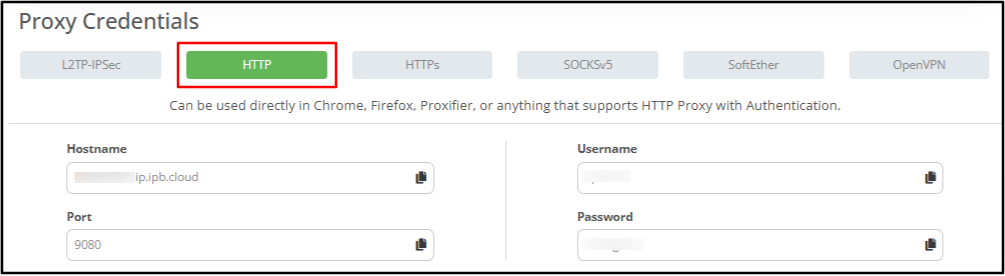
These are your Proxy Credentials. Copy-Paste the HTTP Proxy Credentials into the Extension:
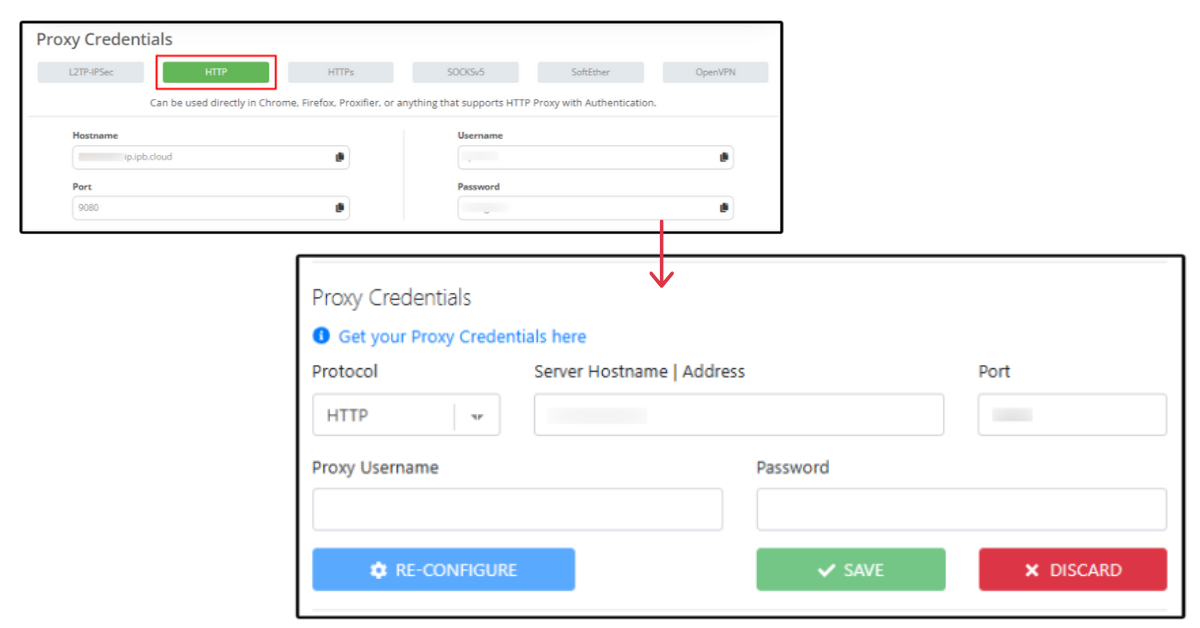
Firefox Extension supports the following Proxy Protocols: ***HTTP, HTTPS, SOCKSv5.***
:::
:::ExpandableHeading
*** Static Residential Proxies***
You can find your Static Residential Proxy service [here](https://secure.ipburger.com/clientarea.php?action=services).

Click the **Proxy Credentials** button and select **HTTP Proxy**.
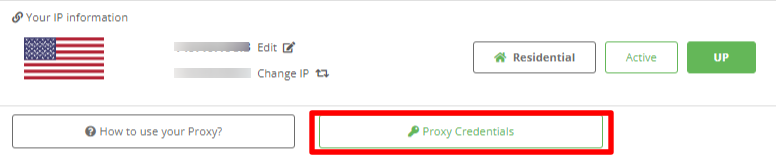
::Image[]{src="https://cdn.filestackcontent.com/YpKyEmcrSNaMWxBih1pk" size="72" width="484" height="364" position="center" showCaption="false"}
These are your Proxy Credentials. Copy-Paste the HTTP Proxy Credentials into the Extension.
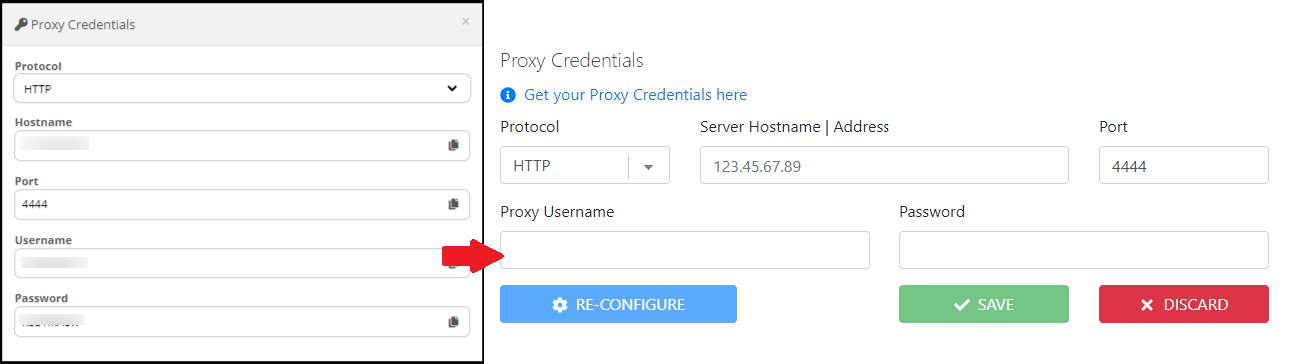
Firefox Extension supports the following Proxy Protocols: ***HTTP, HTTPS, SOCKSv5.***
:::
:::ExpandableHeading
*** Personal VPN***
Access your VPN Service [here](https://secure.ipburger.com/clientarea.php?action=services). Click on the **Manage** button.
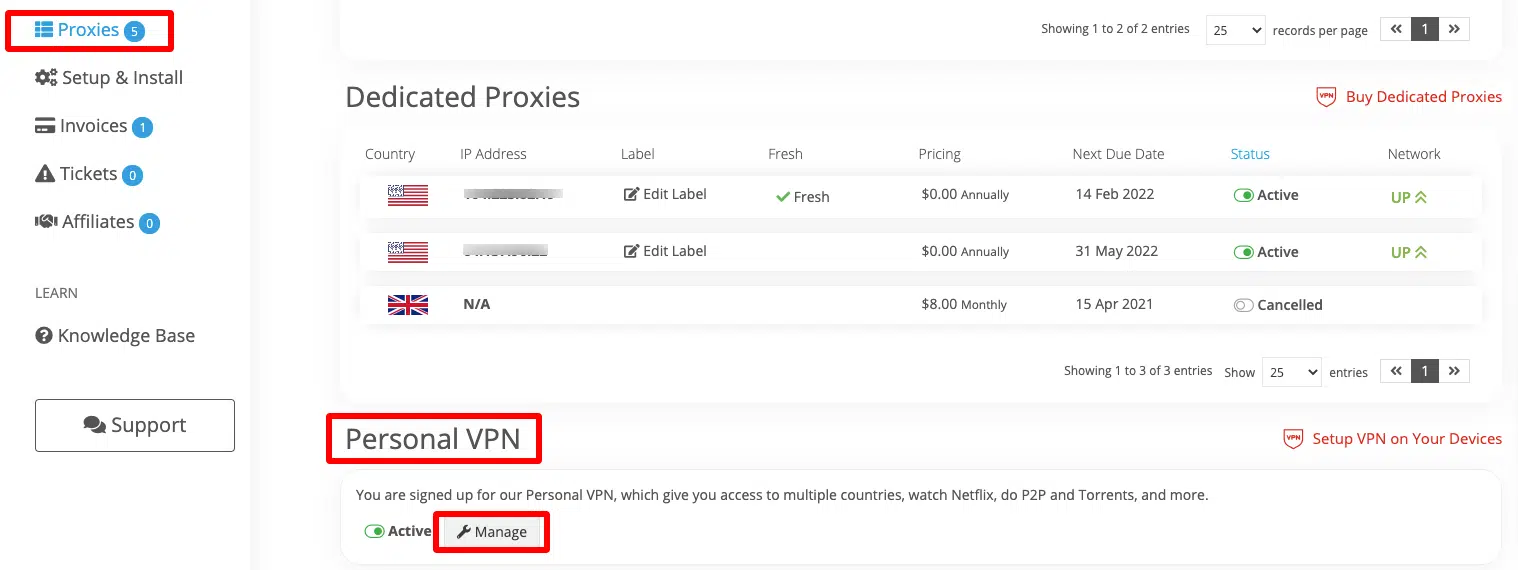
Click on the **Download VPN Credentials **button, and select **HTTP Proxy**.
Select a **location**.
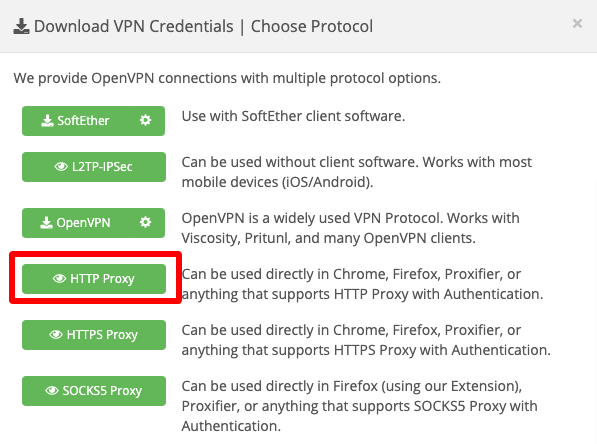
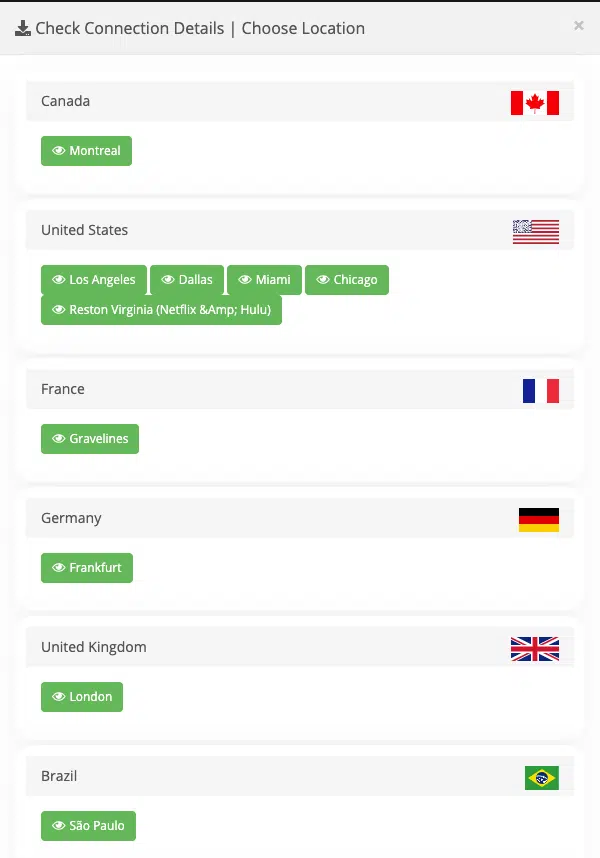
There are more locations available in the actual service. Once you clicked on the location, the credentials will be shown or a profile will be downloaded.
These are your Proxy Credentials. Copy-paste the HTTP Proxy Credentials into the Extension.

Firefox Extension supports the following Proxy Protocols:*** HTTP, HTTPS, SOCKSv5.***
:::
::::ExpandableHeading
***Residential Proxies***
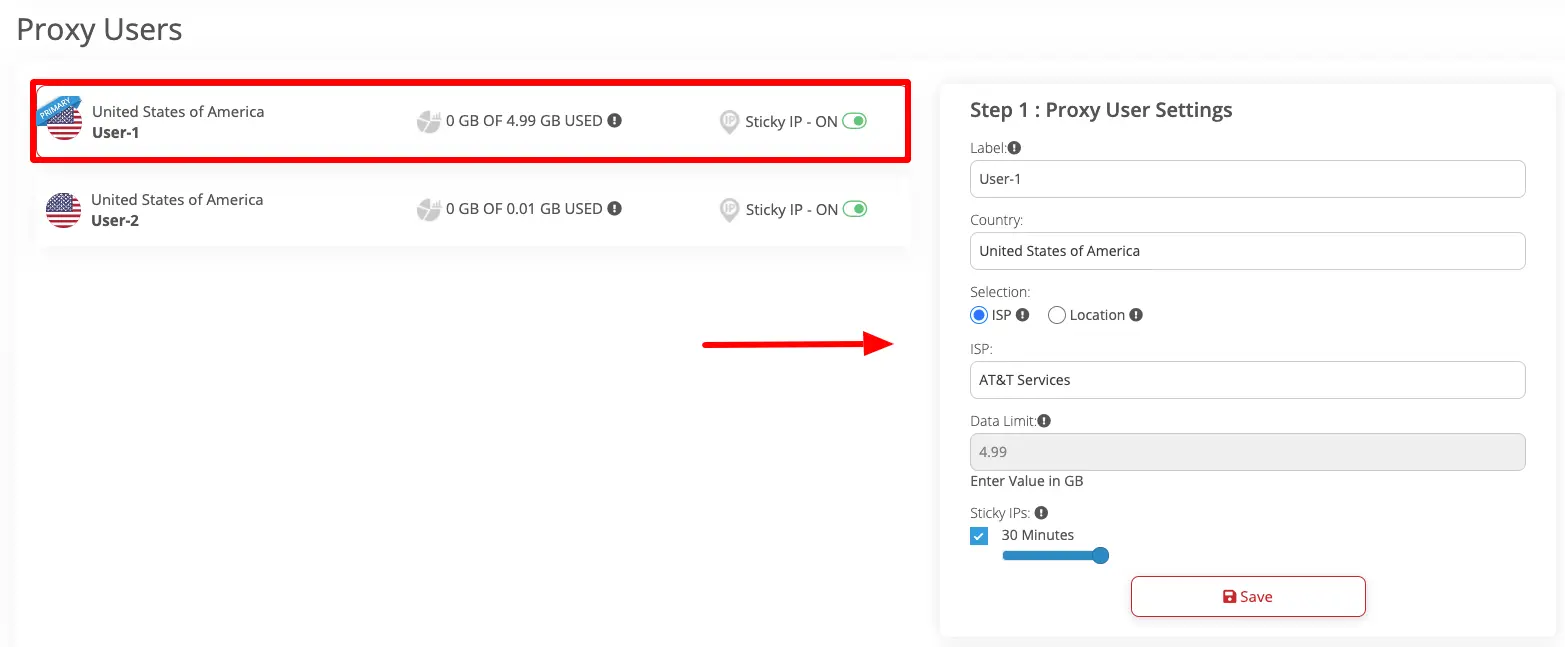
Proxy Credentials (Username and Password) are **not **the same as your IPBurger account's email address and password. Proxy Credentials are issued on a per proxy user basis. Each of your proxy users has distinct Proxy Credentials. The number of proxy users available depends on the plan you have purchased. If you haven't already gone through the Residential Proxy - Quick Start Guide, please go through it once to understand all its features and have a smoother experience.
:::CtaButton{label="Residential Proxy - Quick Start" docId="RNb3KZl58yZKmYdaB-sR2" openInNewTab="true"}
:::
You can find your Residential Proxy service [here](https://secure.ipburger.com/clientarea.php?action=services).
###

Click on the proxy user that you want to set up, change the proxy user settings as per your needs and click on the 'Save' button.
###
::::
### 3. Connect to VPN
Click on **Save. **This will automatically connect you to the IP Address.

Once connected, you should see the **PROTECTED** status, and the Extension icon will turn *Green*.

Now your Firefox is set up to use IPBurger VPN. Every time you start the browser, it would automatically connect to VPN.
## Next Steps
If you have previous sessions and cookies that you want to import, here’s an Extension for that: [Cookie Manager for Firefox](https://addons.mozilla.org/en-US/firefox/addon/a-cookie-manager/)
We will leave this up to your requirements and expertise of operating Business Accounts.
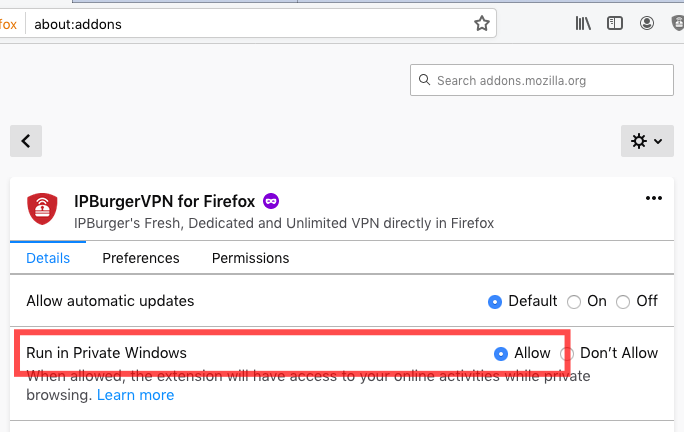
It is important to allow the extension to run in Private Windows, otherwise, your traffic in Private Windows will leak out!
Go to *about\:addons* in Firefox and click **Allow** for **Run in Private Windows **for IPBurger.
The Extension includes many-fold protection against any kind of leak.
✔**IP Address & IPv6** | ✔**Auto-Connect** | ✔**Kill Switch** | ✔**DNS** | ✔**WebRTC** | ✔**Timezone** | ✔**Language** | ✔**GPS**
Head over to Extension FAQ to know more about them.
:::CtaButton{label="See More in FAQ" docId="AH8pzs5lYW6T-ITfeD1Mp" openInNewTab="true"}
:::
We deliberately do not provide an option to turn the protection **Off**, since that can lead to accidental leaks, mixed-up cookies, and caches when you access the browser without protection.
To access the Internet without a VPN, follow the instructions in the FAQs.
:::CtaButton{label="See instructions in FAQ" docId="AH8pzs5lYW6T-ITfeD1Mp" docAnchorId="#d-Vlm" openInNewTab="true"}
:::
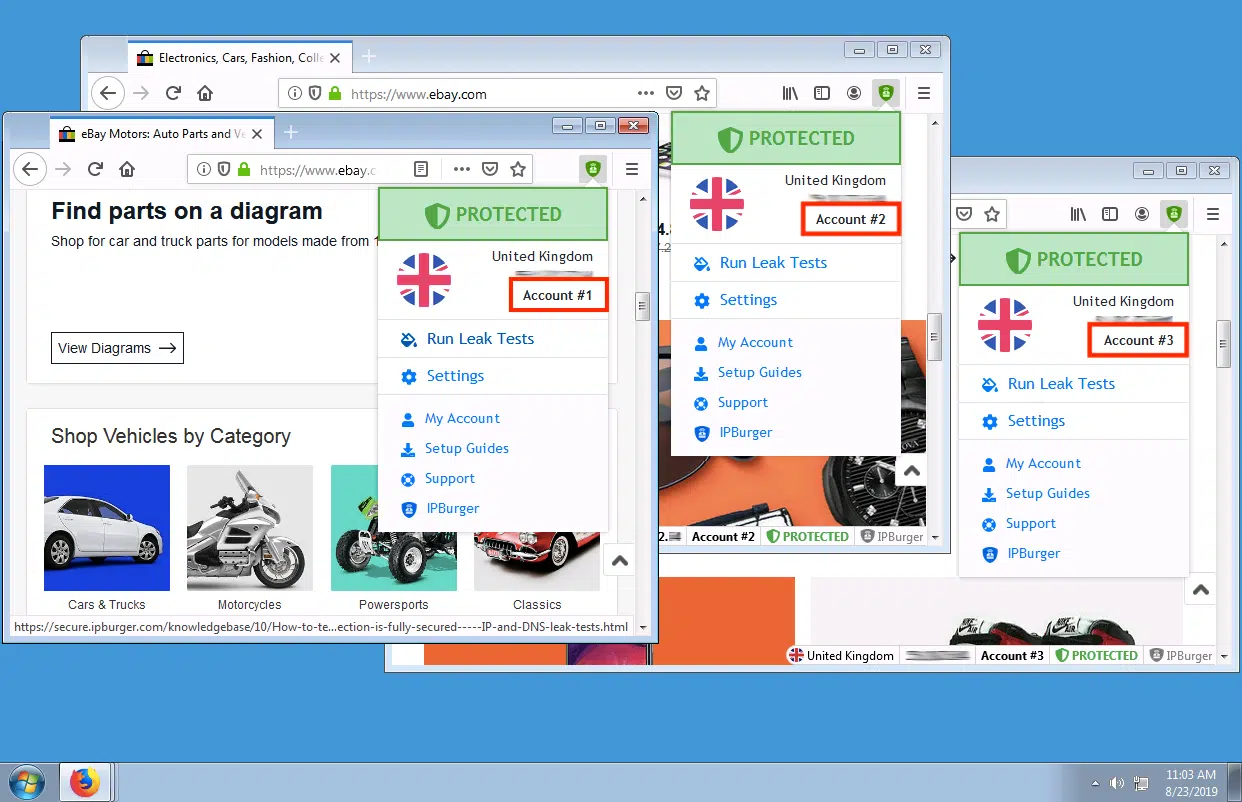
On Firefox, you can easily set up multiple isolated accounts and use them simultaneously without them ever being linked.
Here’s how you do it:
:::CtaButton{label="Multiple accounts with Firefox profiles" docId="Znn7_B5dNOFF8akM4QxvN" openInNewTab="true"}
:::
## Troubleshooting
IPBurger Extension for Browsers is robust and should work in most cases, even when other VPN softwares we provide may fail. If you are having an issue, some possible causes are listed here.
### Server unreachable
Reason: The extension is unable to connect to our servers.
Causes:
- Check if you are connected to Internet
- Is your country/ISP/firewalls actively blocking connections to VPNs or Proxies?
It is possible that your Internet Provider has blockers in their Firewalls against certain Protocols or Ports. We support multiple Protocols & Ports for some services. Try them out while setting up
- Are you connected to another VPN/Proxy? Please disable, or at best, uninstall them before using IPBurger Extension
- One of our servers might be having temporary issues. In line with this, we have active monitors against our servers’ availability and we would be already working on resolving it. The connection should be back in max of couple hours. Feel free to
### Invalid credentials
Reason: The Proxy credentials you provided are invalid.
Causes:
- Ensure you are entering the correct credentials, as
- Is your VPN Service active?
- If all is correct, and you are still having this error, please
### Invalid IP | Another VPN/Proxy Interfering
Reason: The Public IP Address assigned to you has been found invalid, and it does not belong to IPBurger.
Causes:
- Do you have any other VPN/Proxy solutions enabled? Please disable them, or at best, uninstall them so that they do not interfere with IPBurger Extension.
- Please
### Google Hangouts & Voice don’t function
Reason: The Extension disables WebRTC for preventing IP Leaks. Without WebRTC, many VOIP and Video Calling services can not connect via peer-to-peer network.
This is the browser's default functionality and any issues related to this are out of scope.
For any queries, feel free to [reach out to our Support](https://secure.ipburger.com/support), we are happy to help!