Afina Browser Integration Guide for IPBurger Proxies
This guide will walk you through connecting your IPBurger proxy to Afina Browser for proper configuration and consistent browser profile settings.
Before You Start
Make sure you have:
✔️ Installed and logged in to Afina Browser
✔️ An active IPBurger proxy
✔️ Your proxy details:
- Host / IP Address
- Port
- Username
- Password
- Proxy protocol (HTTP, HTTPS, or SOCKS5, depending on your IPBurger plan)
You can find these inside your IPBurger dashboard. Below is a sample view of the IPBurger dashboard:
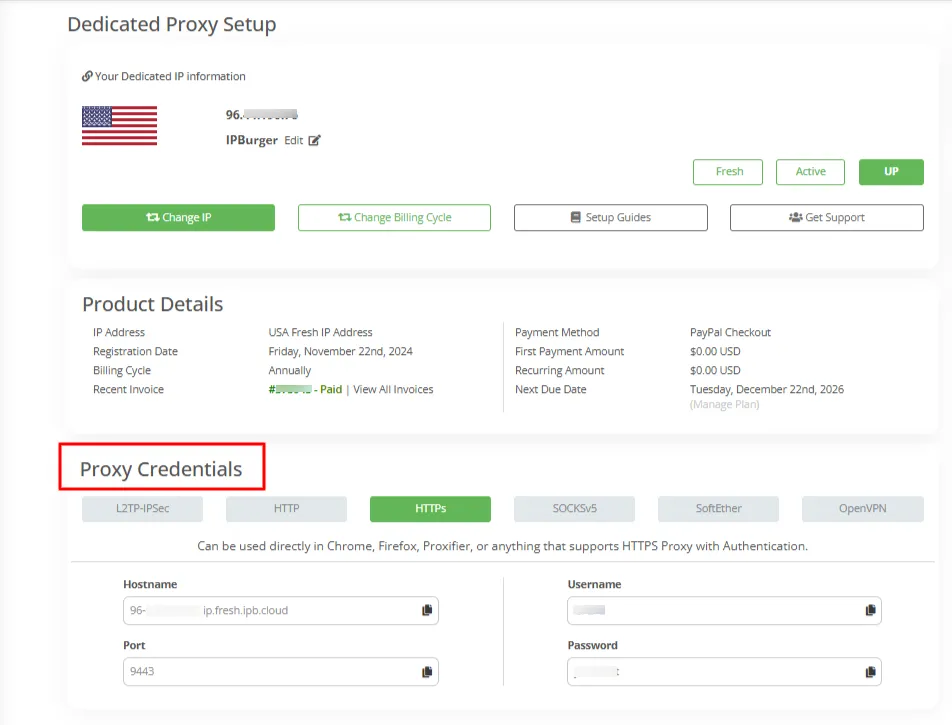
⚠️ The dashboard interface may vary slightly depending on your purchased proxy type.
Step-by-Step Setup
1️⃣ Open Afina Browser
Launch your Afina Browser application.
2️⃣ Create or Open a Browser Profile
- Create a new browser profile or open an existing one.
- Enter a profile name if you are creating a new profile.
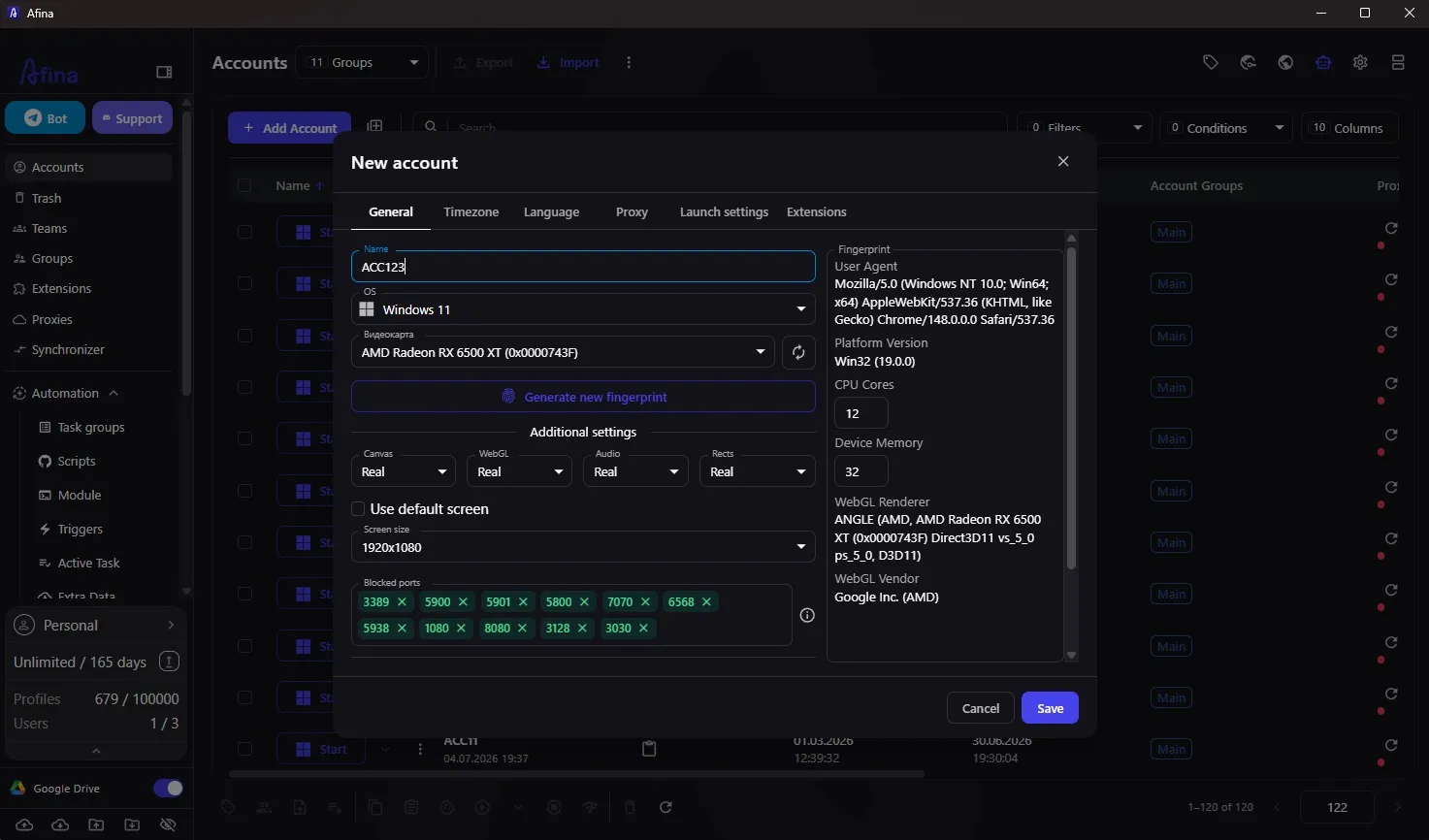
3️⃣ Add Your IPBurger Proxy
- Open the proxy settings within your Afina browser profile.
- Select the appropriate proxy protocol:
- HTTP
- HTTPS
- SOCKS5, if supported by your IPBurger plan
- Enter the proxy details from your IPBurger dashboard:
- Host
- Port
- Username
- Password
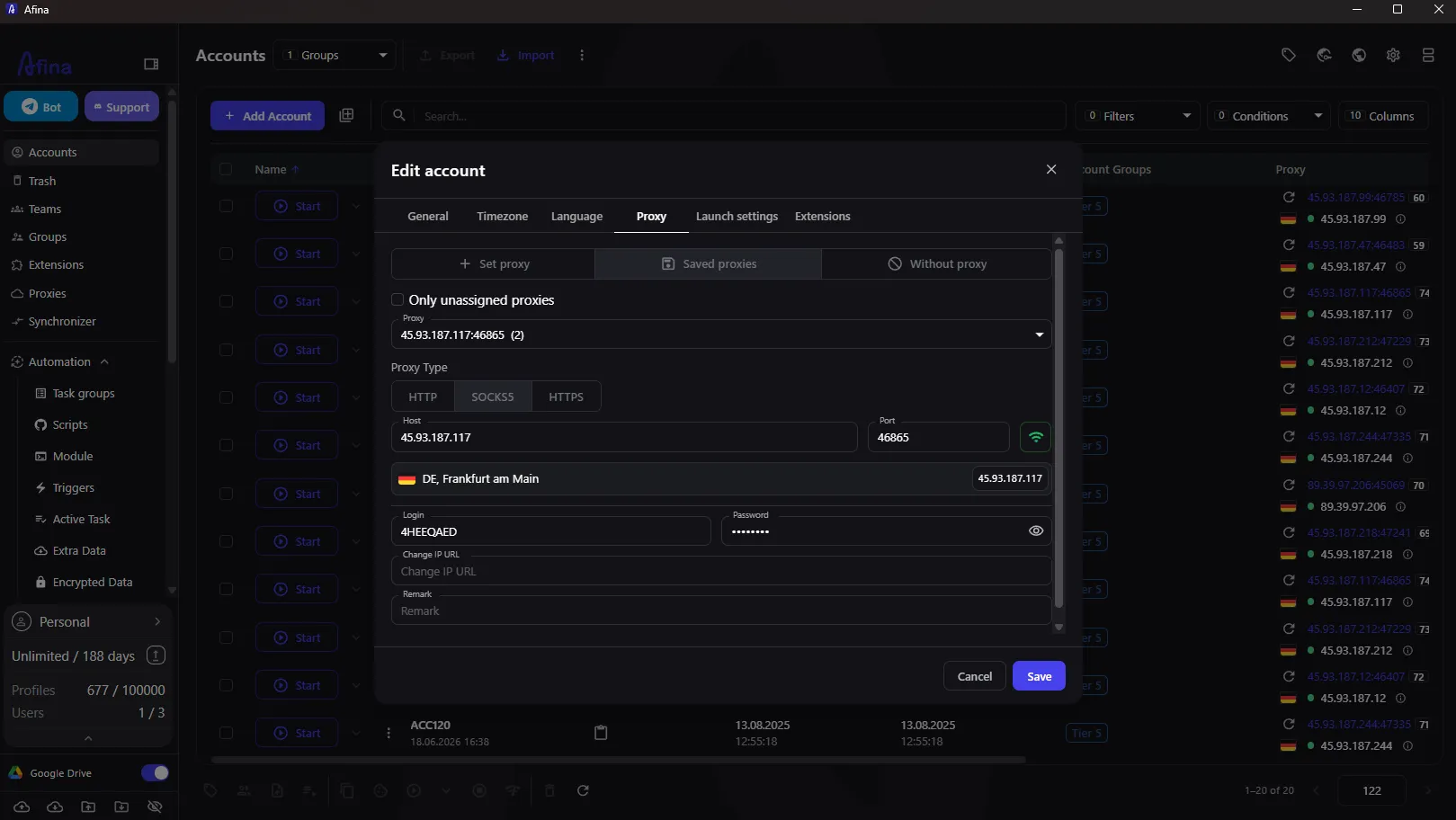
⚠️ Protocol Reminder: If you are using IPBurger Rotating Residential or Mobile Proxies, select HTTP.
4️⃣ Configure Your Proxy Session
If you are using a rotating proxy, configure the session or rotation settings on the IPBurger side, where applicable.
Afina assigns the proxy to your browser profile, while IPBurger controls the proxy's rotation behavior.
For accounts that require a consistent IP address, use a static proxy or an available sticky-session option appropriate for your plan.
5️⃣ Test the Proxy
Run the proxy check in Afina, if available.
If the connection is successful, verify that the displayed outgoing IP address and country match the expected IPBurger proxy details.
If the connection fails, double-check your host, port, username, password, and selected protocol.
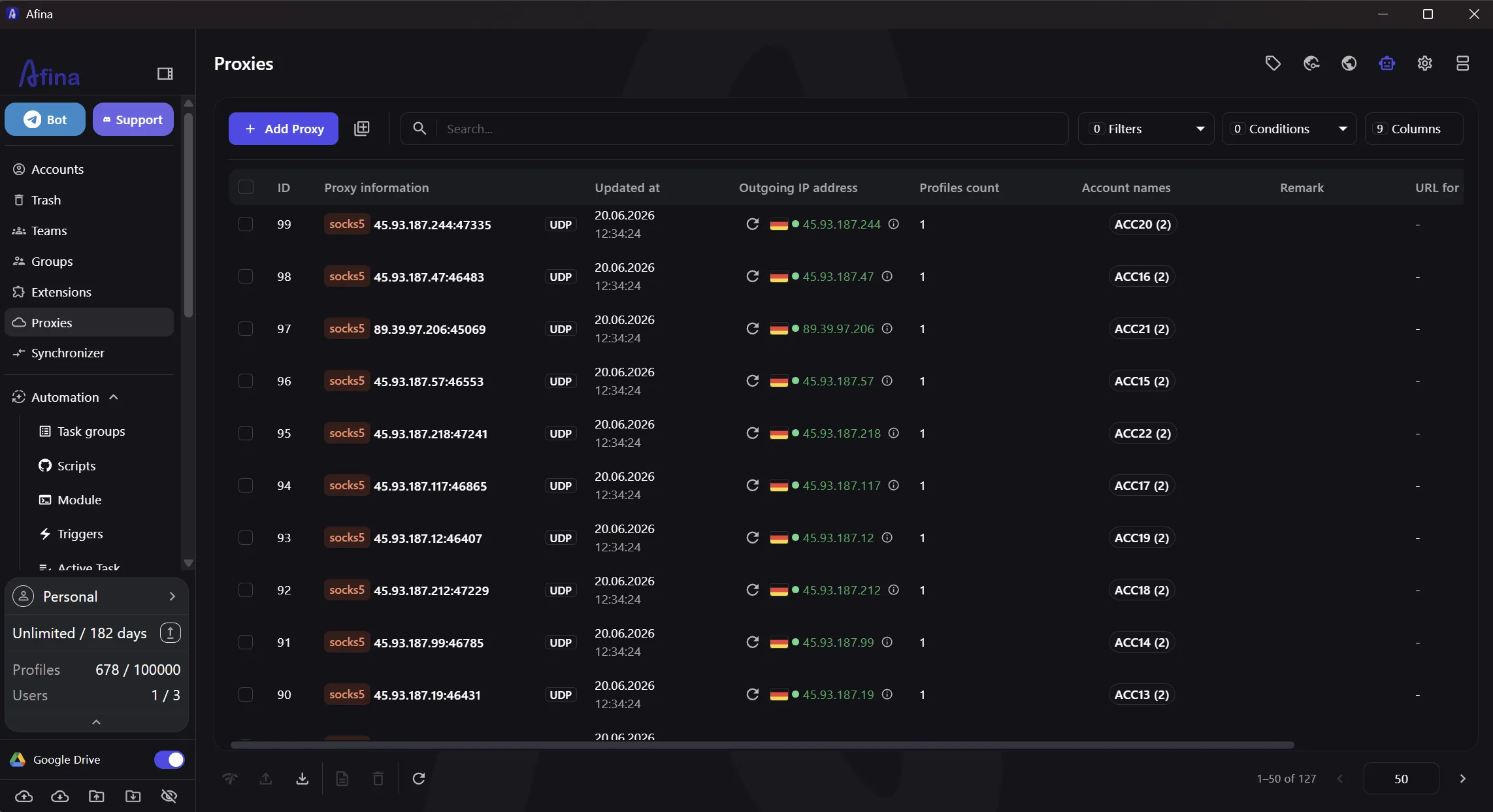
6️⃣ Save and Launch Your Profile
Save your browser profile settings.
Launch the profile and open an IP-checking website inside the same browser window.
You can visit:
👉 https://www.ipburger.com/
Confirm that the displayed IP address and location match your expected proxy information.
✅ You’re All Set
Your IPBurger proxy is now successfully connected to Afina.