ProxyTool Integration Guide for IPBurger Proxies
This guide will walk you through connecting your IPBurger proxy to ProxyTool, verifying your proxy connection and exit location, and routing selected applications through your IPBurger proxy.
Before You Start
Make sure you have:
✔️ Installed ProxyTool on your Windows, macOS, or Linux device
✔️ An active IPBurger proxy
✔️ The application you want to route through your proxy
✔️ Your proxy details:
• Host / IP Address • Port • Username • Password • Proxy protocol (HTTP, HTTPS, or SOCKS5, depending on your IPBurger plan)
You can find these inside your IPBurger dashboard. Below is a sample view of the IPBurger dashboard:
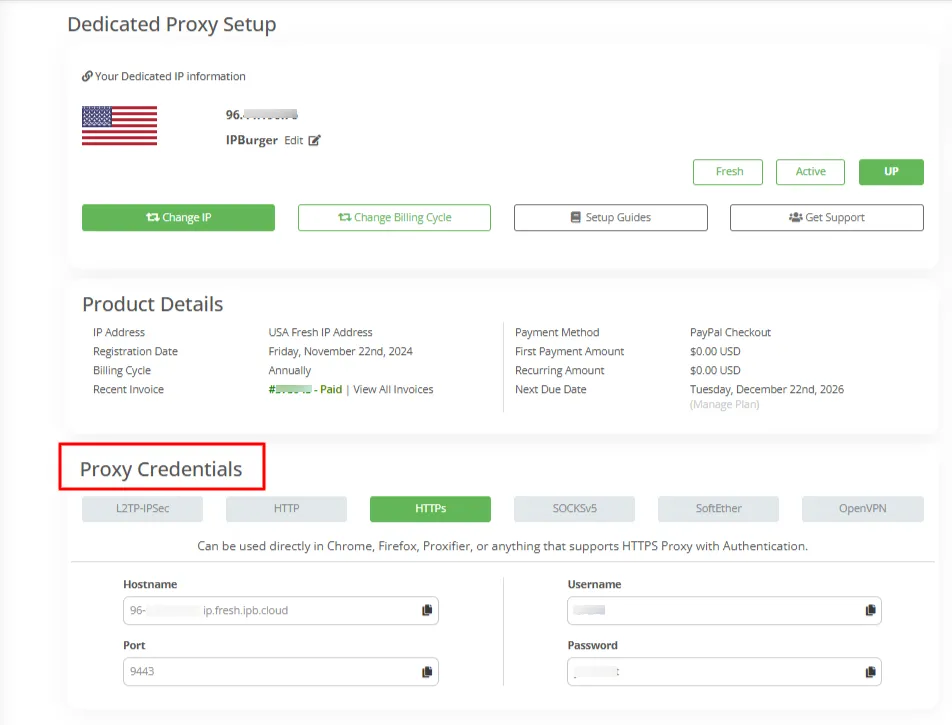
⚠️ The dashboard interface may vary slightly depending on your purchased proxy type.
Step-by-Step Setup
1️⃣ Open ProxyTool
- Launch the ProxyTool application on your device.
- Download ProxyTool: https://proxytool.app/
2️⃣ Add Your IPBurger Proxy
- Open the Proxies section and click Add Proxy.
- Enter your proxy details using the endpoint format provided by IPBurger.
Example proxy string:
socks5://username@provider-endpoint
Replace the example values with your actual IPBurger proxy credentials.
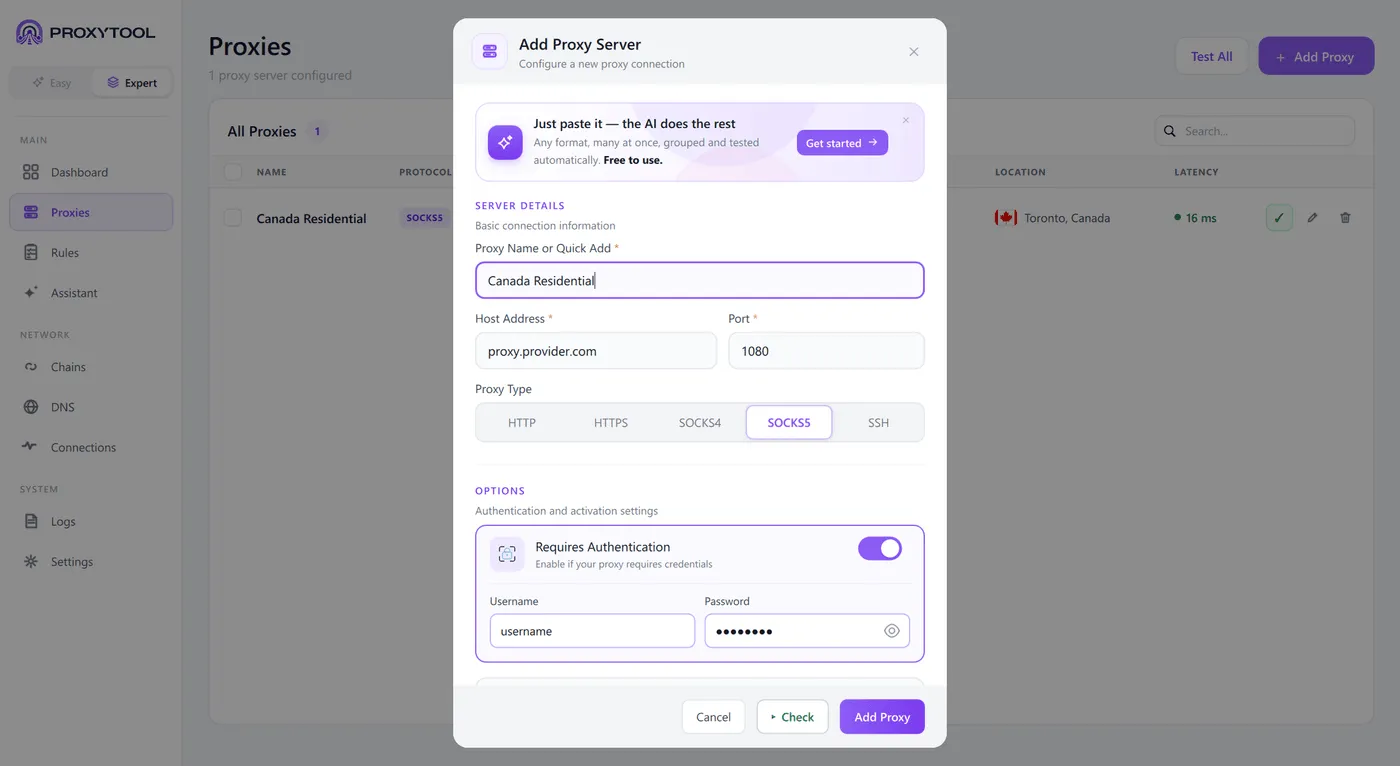
Tip: Use a clear, descriptive proxy name, such as Canada Residential.
Important: Keep your proxy endpoint and credentials private. Always mask passwords in screenshots.
3️⃣Test the Proxy Connection
- Run the built-in proxy check.
- The test provides information about the protocol, authentication status, latency, and detected exit location.

Verify that the detected IP address and country match your expected IPBurger proxy details.
4️⃣Route an Application Using a Manual Rule
- Open the Rules section and add a new rule.
- Configure the rule to:
- Select the application or process you want to route.
- Choose the appropriate proxy action.
- Select your configured IPBurger proxy.
- Configure any additional host or port conditions required.
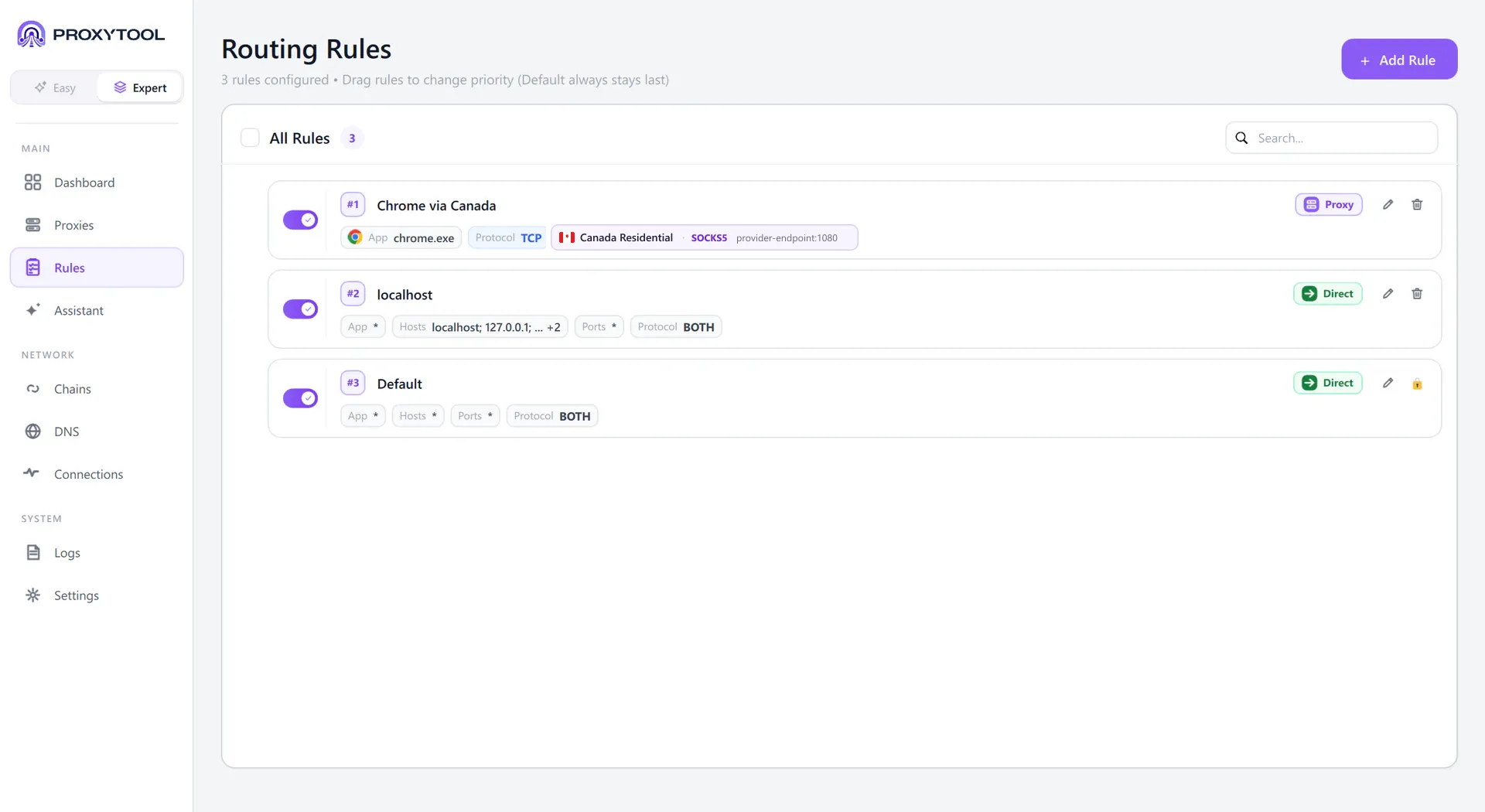
- Save or enable the rule.
Tip: Keep the Default rule last so unmatched traffic follows your normal connection, as recommended by ProxyTool.
Alternatively, Use ProxyTool AI
Describe your desired routing configuration in plain language.
Example:
Hey, route Discord through Canada Residential.
Review the proposed proxy and routing rule, then select Create rule.
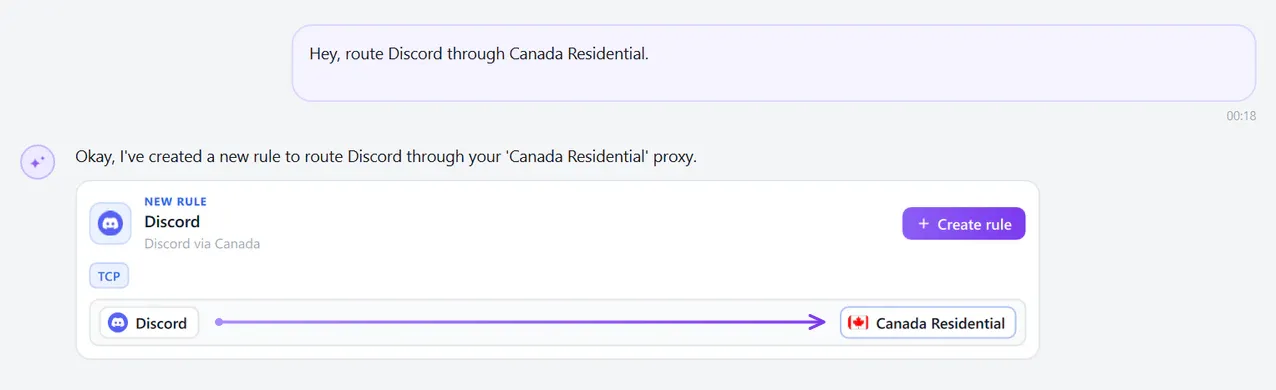
Always review the proposed configuration before applying it.
Verify Your Application's IP Address
Activate the routing rule and open the application you configured.
Visit https://www.ipburger.com/ where applicable to check the outgoing IP address and location.
Confirm that the detected details match your expected IPBurger proxy.
✅ You’re All Set
Your IPBurger proxy is now configured in ProxyTool. Your selected application should route traffic through the proxy according to your active routing rules.